When a review is approved, galley can hand the document to someone who only needs to read it. It turns the Markdown into one HTML page that opens offline, with a sidebar of its sections, styled code and tables, and its diagrams drawn. A theme decides what that page looks like: its colours, fonts and logo. galley ships a default theme, so you only make one if you want your own brand on the page.
share
Share an approved document
After you approve a review, the Revise button becomes Share. Its menu has four items:
Download HTML saves the branded page to your Downloads folder.
Download Markdown saves the Markdown file as it is.
Share HTML writes the branded page next to the Markdown file and puts it on your clipboard. Paste into Slack or an email and it arrives as an attached file.
Share Markdown puts the Markdown file itself on your clipboard the same way.
The two Share items work on macOS. The HTML page is a single file: images that sit next to the document, fonts and diagrams are all inside it, so it opens without a network connection.
While you are still editing, HTML preview in the bar opens the same page in a new tab. It reloads each time the document is saved, so you can watch the shared version change as you and the agent work.
the default
The default theme
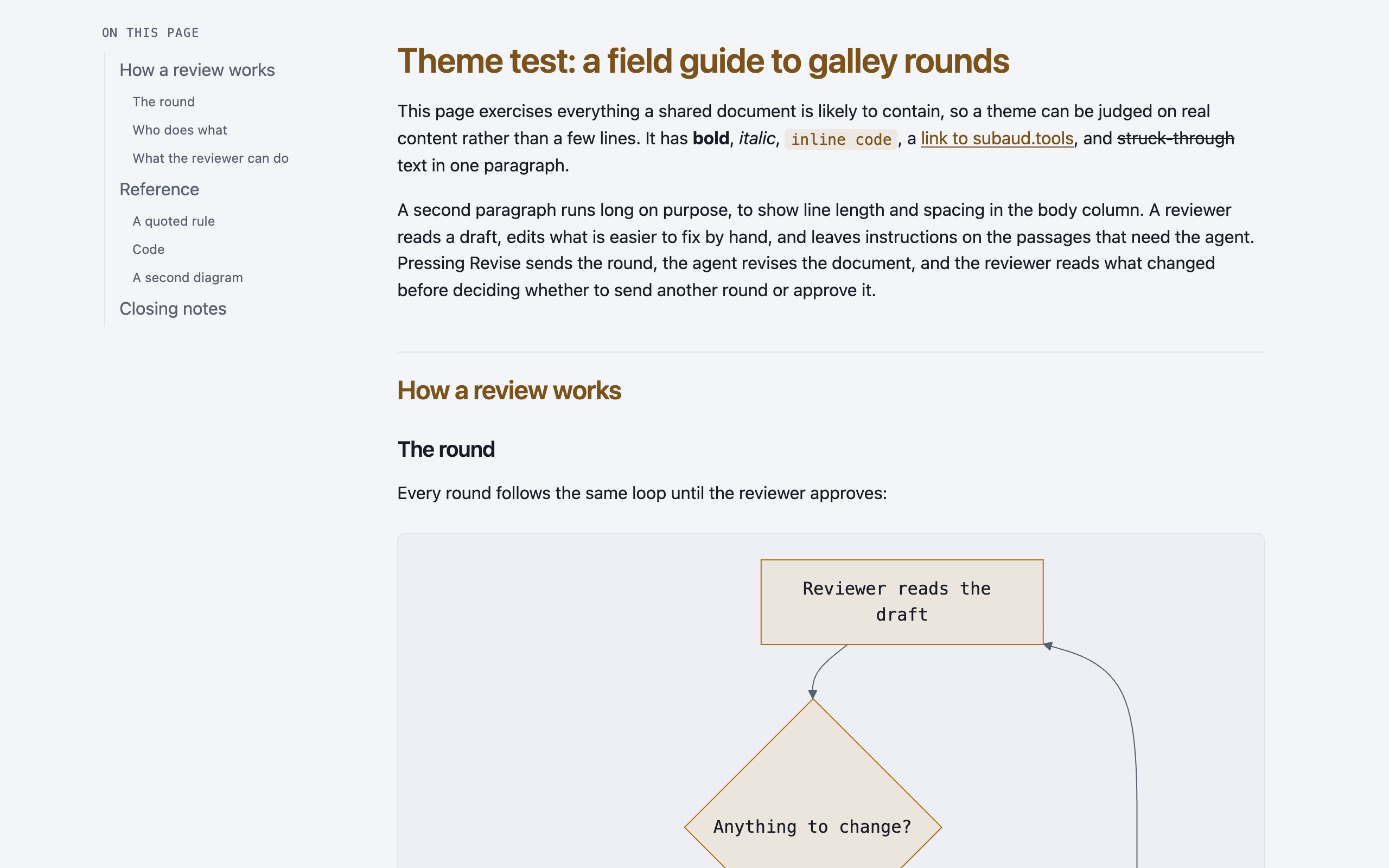
With no theme set, every document gets galley's own page: a sidebar listing the document's sections, headings in an amber accent, code and quotes on soft cards, tables with a small monospace header and striped rows, and diagrams drawn in matching colours. It follows your reader's light or dark setting. It has no header and no logo, so it suits any document.
default — no theme set, light mode
your own theme
Make your own theme
A theme is a folder of a few files. You make it once, and every project that names it gets the same look.
1. Create the folder
Themes live in your galley config folder, one folder per theme. For a theme called acme:
Only theme.json is needed. The two logos are optional.
2. Choose five colours
theme.json names five colours for a light page and five for a dark one. Each colour has one job, and galley mixes the rest of the page's shades from these five:
muted is the quieter text: the sidebar and table headers.
line is every thin rule and border. It also tints the cards behind code, so a very faint line makes code blocks faint too.
accent is your brand colour. galley darkens it for headings and links on a light page and lightens it on a dark one.
Anything you leave out comes from the default theme, so a theme can be as small as one accent colour.
3. Add a logo and a label
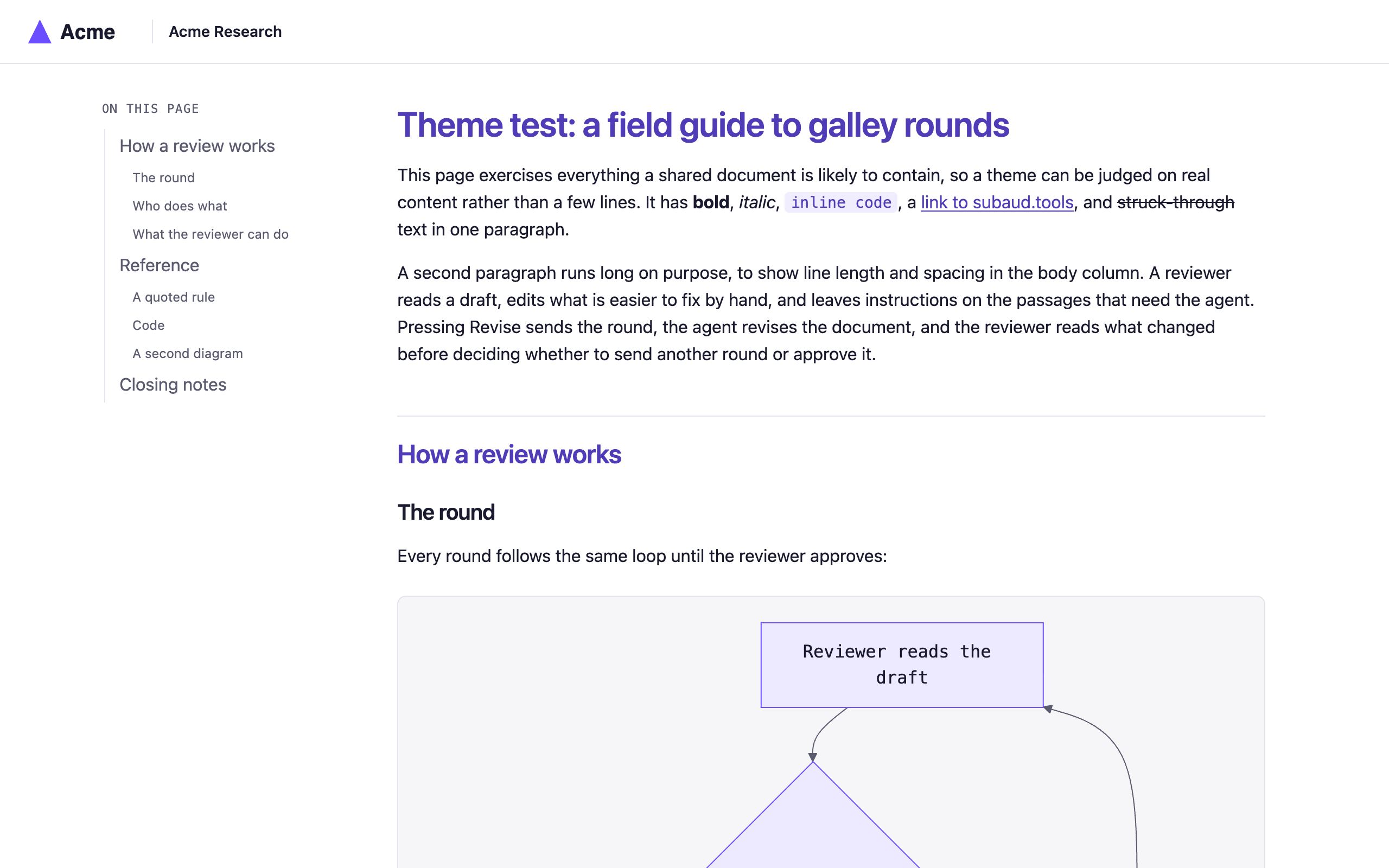
logo-light.svg is the logo as it should look on a light page, and logo-dark.svg as it should look on a dark one. Each is shown about 26 pixels high at the left of a header bar. label is a short line of text beside the logo, such as a team name.
The header only appears when a theme has a logo or a label. Leave both out and the page starts straight with the sidebar and the document, as the default does.
acme — the theme.json above, with a logo and a label
4. Use it in a project
In the project whose documents should use the theme, add .galley/config.json:
{ "theme": "acme" }
galley looks for this file in the document's folder and then in each folder above it, and uses the nearest one. So one file at the top of a repository covers every document in it.
5. Check it
Render a test document without opening a review:
$ galley render notes.md
/path/to/notes.html
Open the file and look at it in both light and dark mode. A good test document has a few sections and subsections, a table, some code and a diagram. If the theme has a problem, such as a misspelled name or a broken theme.json, galley render prints the error instead of writing a page.
going further
Going further
Two more options cover what the five colours can't:
Fonts. List font files in theme.json and put them in the theme folder. galley embeds them in every page, so readers see them without installing anything.
extra.css. A stylesheet in the theme folder, loaded after galley's own. Use it to change anything else: heading weights, the sidebar, table styling. The page's parts have stable names to target: the header is .g-head, the sidebar is .g-side, and the document is .g-body. The colours are CSS variables, --bg, --fg, --muted, --line and --accent, plus the four galley mixes from them: --accent-strong, --accent-wash, --panel and --panel-raised.
A theme changes how the page looks, not how it is laid out. Every theme keeps the same sidebar, body and header.